
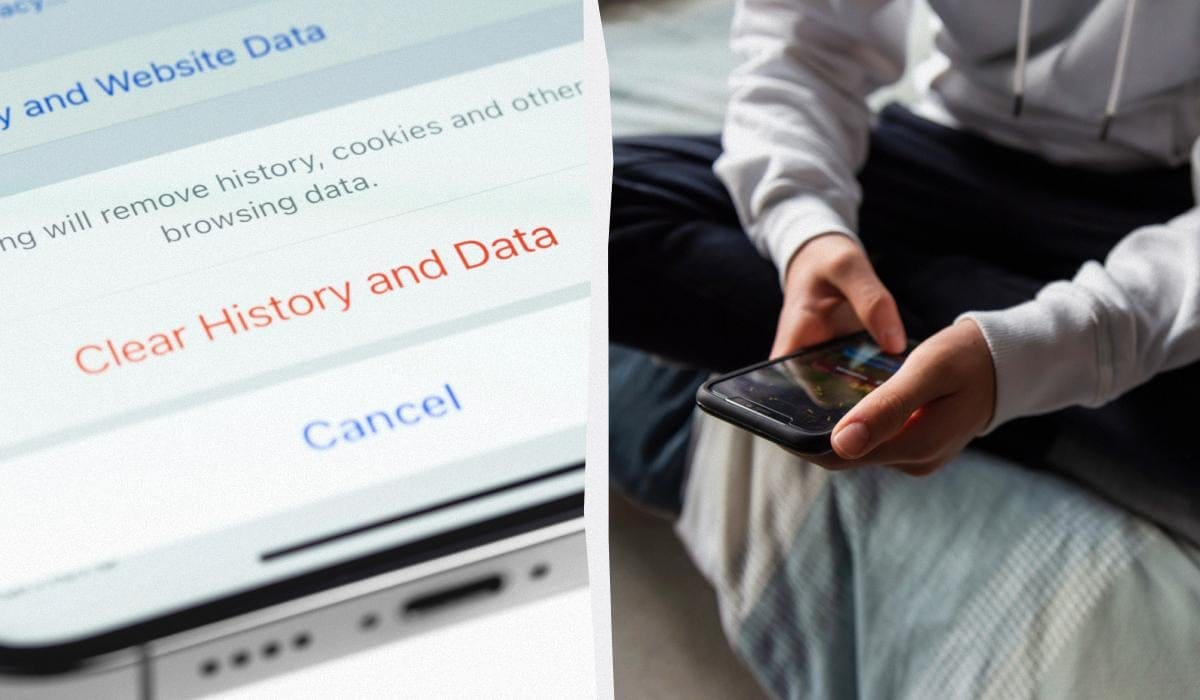

Even the latest iPhones can slow down over time because of a full cache – temporary files from websites and apps. As SlashGear says, clearing your cache regularly can make your device perform as well as it used to and free up storage space. On iOS, the cache is split into two types: browser cache and app cache. To clear your Safari history, go to Settings > Safari > Clear History and Website Data (for selective deletion, go to Advanced > Website Data). In Google Chrome, you can do this via the browser’s internal menu: Go to Settings, then Privacy and Security, and then Clear Browsing Data. There’s no one button in iOS for deleting app temporary files, so experts say you should either look for a clear function within the apps’ own settings (like in Reddit) or temporarily delete (‘uninstall’) the apps via Settings > General > iPhone Storage menu, then reinstall them.
Once you’ve got used to your iPhone running smoothly and without glitches, you’ll definitely notice if it suddenly starts to slow down. The iPhone 16 Pro and older models are, of course, amazing, but they do need to be looked after. Sometimes, all it takes to get your iPhone working like new again is a quick clean-up, starting with the cache, as SlashGear says.
The iPhone cache is where temporary files are stored, which help apps and websites load faster. Caching is when a device stores web pages, images or videos so that they load faster next time you access them.
How to clear the cache on an iPhone
Your iPhone has two types of cache:
- Basically, browser cache (like Safari or Chrome) is basically like a storage place for website data, so that pages load faster next time you visit.
- App cache is where temporary files are stored, like images, videos and settings.
The cache makes things faster, but if you don’t clear it, it can take up loads of storage and make your device slow down. Also, you might run out of storage space soon.
Clearing the cache helps free up storage, fix errors caused by corrupted or outdated data, and remove saved login tokens or browsing history.
How to clear the Safari cache on an iPhone
The browser is one of the main sources of cached data, so it’s a good place to start. Even if you’ve changed your default browser, you’ll probably still use Safari now and then, and it can build up a lot of data.
To clear the Safari cache:
- Open the Settings app
- Scroll down and select Safari.
- Scroll down again and tap Clear History and Website Data.
- Tap Clear History at the bottom of the screen.
If you want to delete data for specific websites:
Go to Settings > Apps > Safari > Advanced > Website Data. Just tap ‘Delete All Website Data’ and confirm. If you’re using Chrome or another browser, the process will be a bit different.
How do you clear the cache in Google Chrome on an iPhone?
- The first thing you need to do is open Chrome.
- Just tap the three dots at the bottom of the screen.
- Go to Settings > Privacy and security > Clear browsing data.
- Just pick a time range.
- Pick what you want to delete (like history or cache) and hit confirm.
- Just tap ‘Clear data’.
You can do the same thing for other browsers, like Firefox. Just look for the privacy or settings sections. Once you’ve cleared the cache, you’ll probably see that the website loads faster, there are fewer crashes and more free memory.
How to clear the cache for all your apps on an iPhone
Popular apps can not only drain the battery but also slow down your phone if the cache gets out of hand. Unlike a browser, iOS doesn’t have a universal “clear cache” button for apps. There are two ways to go about it:
- Some apps (like Reddit or Amazon) have a cache clearing option in their settings. Try clearing the cache, app storage and local history.
- If there isn’t a function like that, you’ll have to delete and reinstall the app.
Steps:
- Open Settings.
- Go to General.
- Tap on ‘iPhone Storage’.
- Find the app you want.
- Just tap Offload App to delete it, but keep your documents and data.
- Or just tap Delete App to delete everything.
- Just reinstall it from the App Store.
The cache can take up more space than the app itself, so it’s a good idea to check your storage regularly and clear the cache if you need to.